What are Logs in Node API?
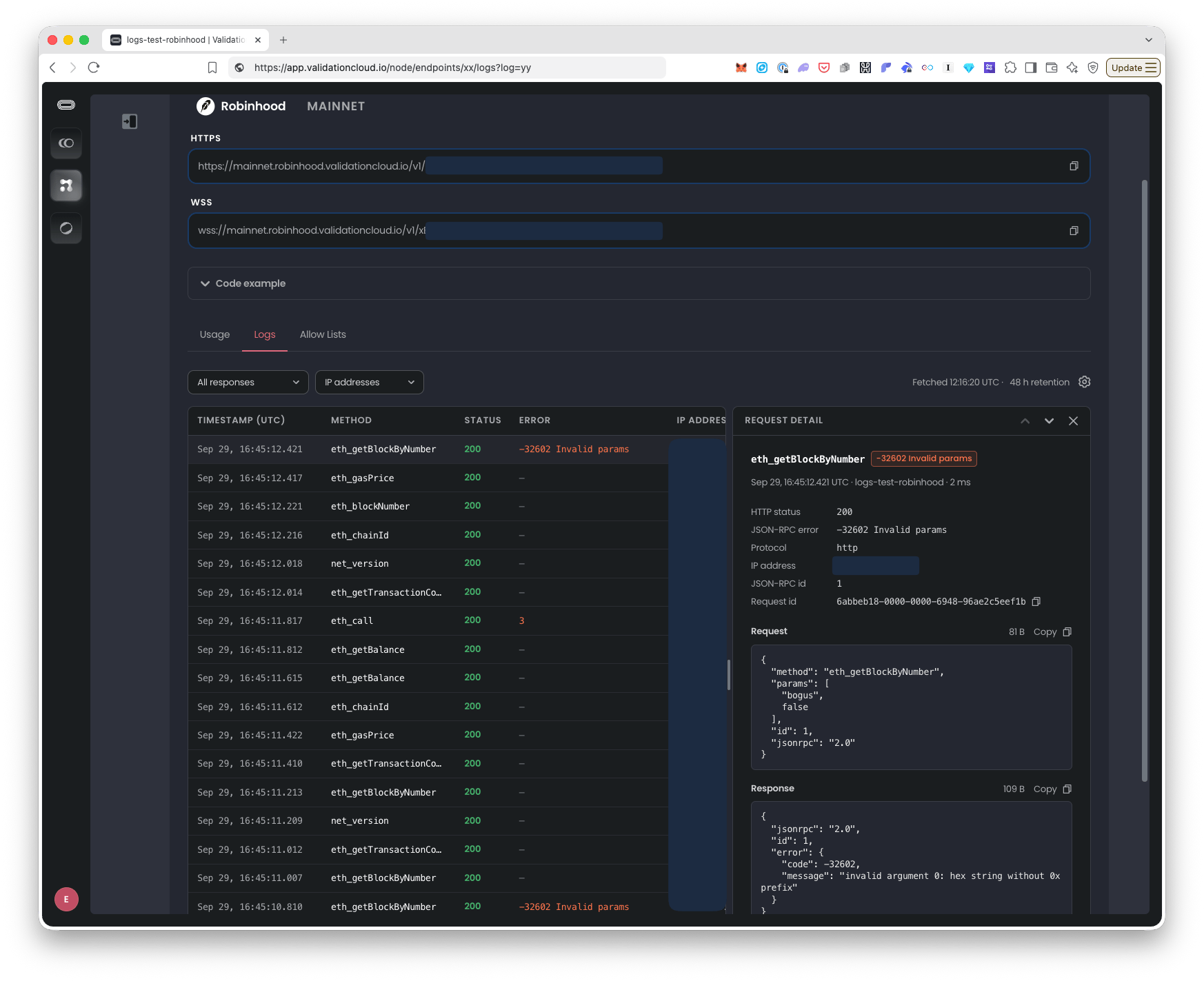
Plan restrictions: Teams on Scale Plan and above For those teams on qualifying plans, Logs lets you enable request and response logging for your Node API endpoint keys. With Logs enabled for an endpoint:- You can see requests that have come in and which IP address those requests have come from. You might want to use that to check that these IPs are correct. You could also combine this with the Allow lists feature if you want to restrict requests to only be allowed from certain IPs or domains.
- Alternatively, you might use Logs to do some debugging on a particular response, error or spot check your traffic to see that your requests are working as expected.
- Log retention is up to 48 hours. You can lower it, or turn logs off by setting it to 0, with the Admin API or the
nodeapi.set_endpoint_optionsMCP tool. - The Logs page refreshes automatically: new requests appear without reloading the page.
- Request and response bodies will be displayed where available, e.g. JSON RPC requests, unless they are over 4KB.
Where it is and who can use it
Plans: Scale and Private. Free teams see the tab described below but with an “Unlock Logs with Scale” overlay and an Upgrade button. Roles:- Only Team Admins can turn on or off Logs for endpoint. They can view and filter as well.
- Team Members can only view and filter Logs for already enabled endpoints.
- Node API: app.validationcloud.io/node
- Click an endpoint
- Click the Logs tab
- Note: After you enable Logs on an endpoint, it takes a few minutes for the first requests to show up. They appear automatically.
- Node API: https://app.validationcloud.io/node/logs
- You can use the dropdown filters to only view specific endpoints, IP addresses etc that you are interested in.
How to enable Logs for a Node API endpoint & view them
- Go to Node API and click on the endpoint you want to enable Logs on.
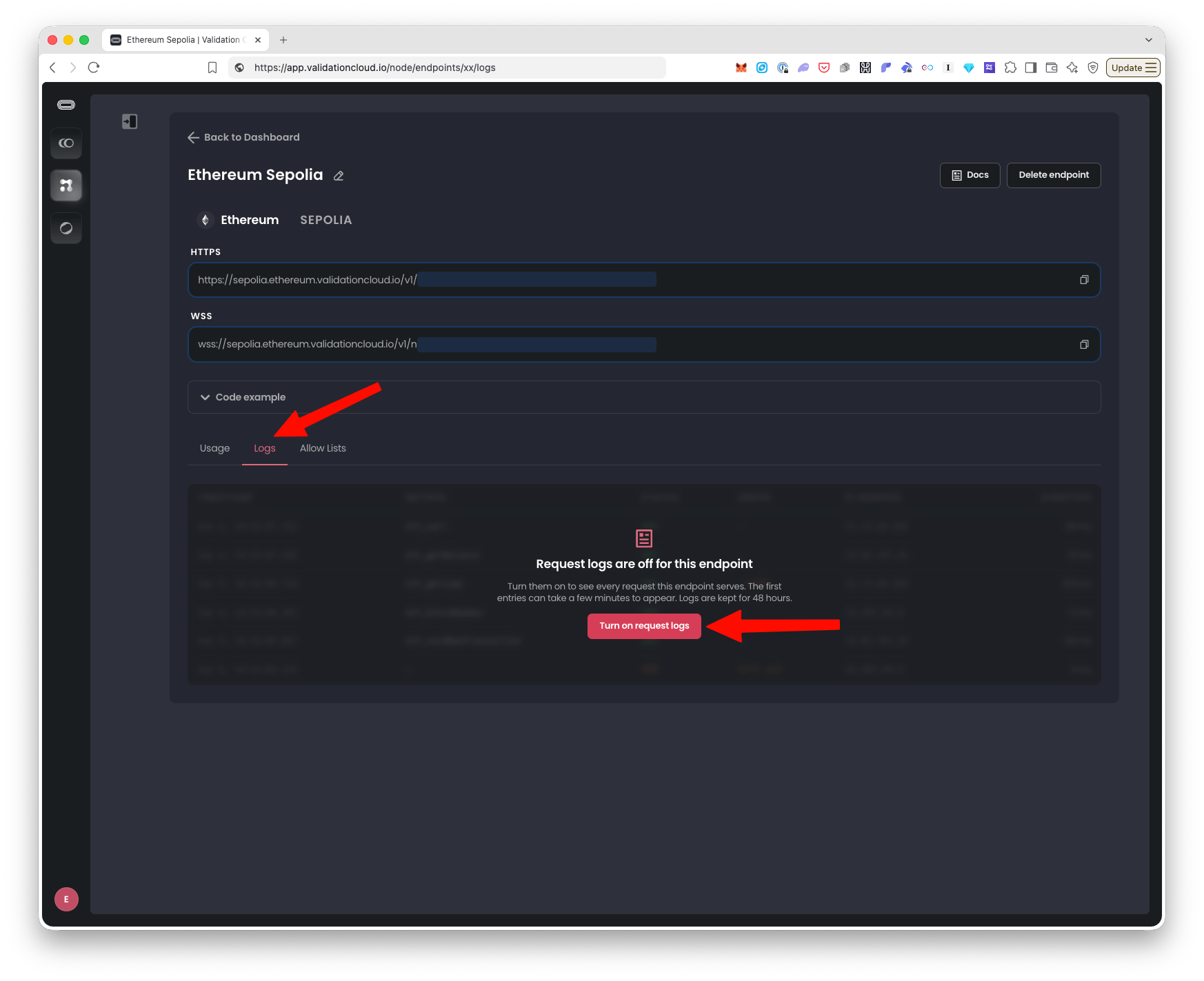
- Select the Logs tab and click the button “Turn on request logs”, see screenshot below:
- After 5-10 minutes, requests start to show up automatically.
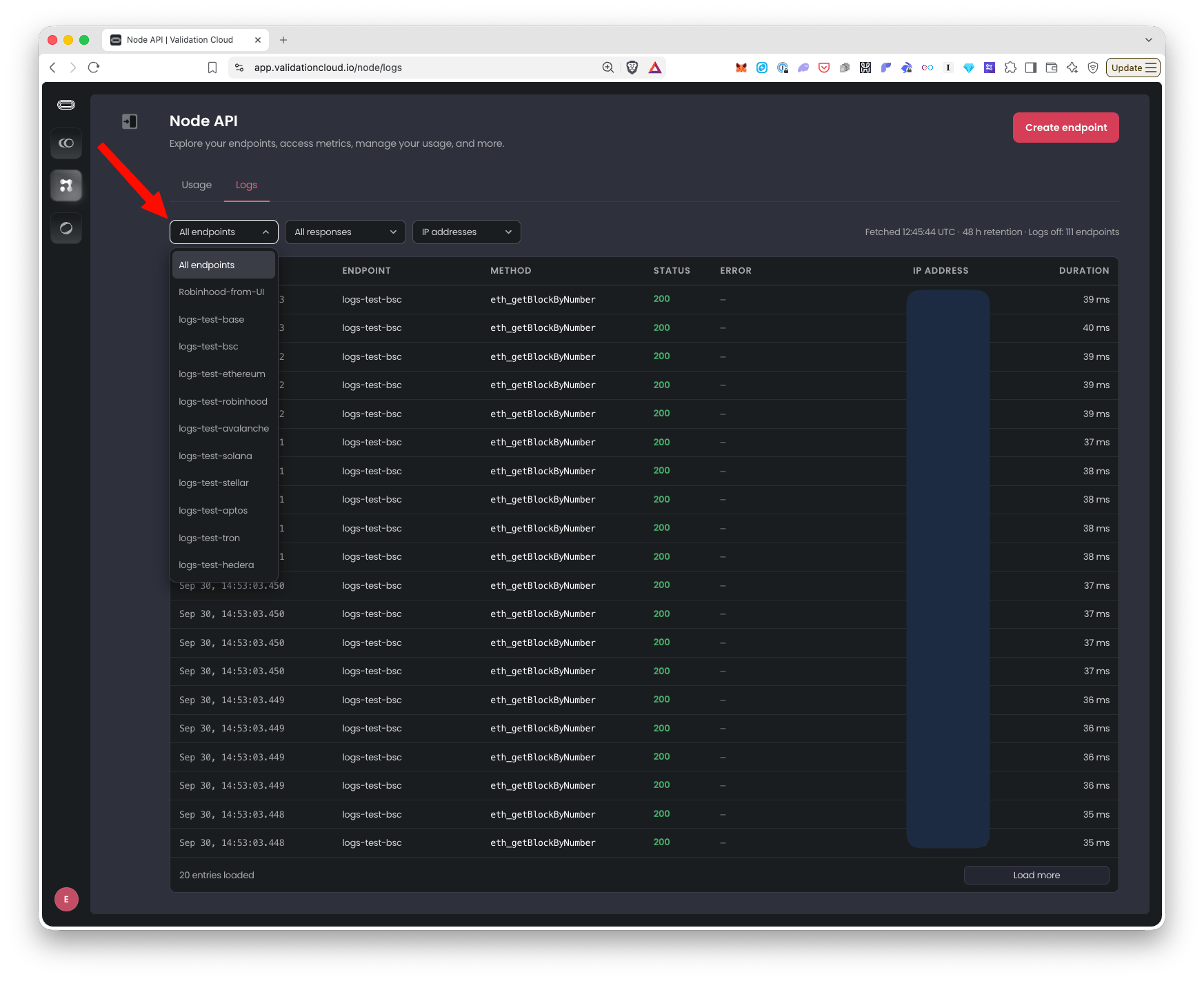
- Once logs start to come in for this endpoint, you will also be able to view them on the Node API Dashboard Logs page (https://app.validationcloud.io/node/logs) which shows logs from all endpoints in your Team that have Logs enabled. You can filter the Node API Dashboard Logs page by which endpoints you want to see logs for, see screenshot:
- Go to Node API and click on the endpoint you want to disable Logs for.
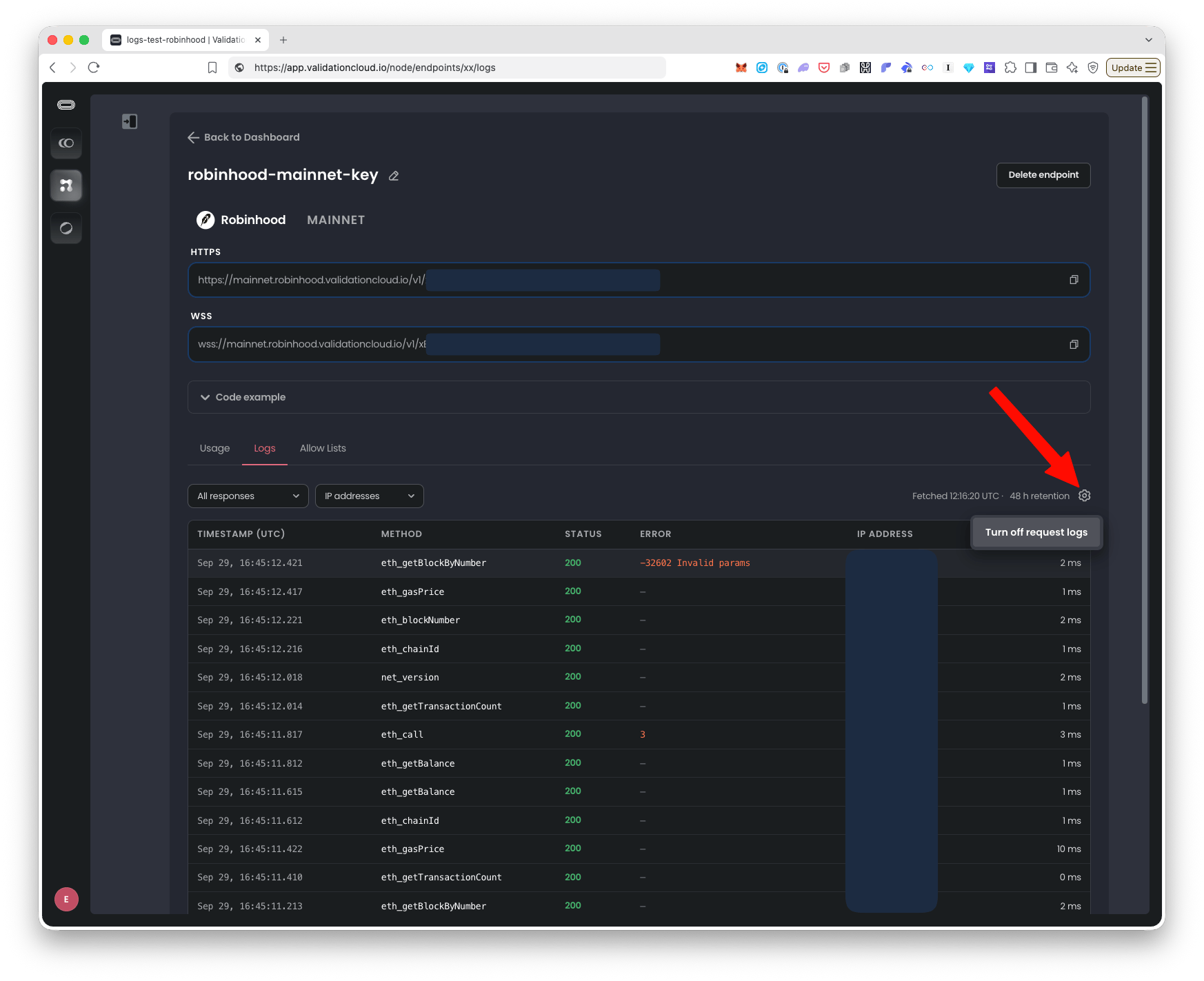
- Click the “cog” icon above the table and click “Turn off request logs”, see screenshot: