

What is Two-Factor Authentication (2FA)?
Plan restrictions: None, available to all users on all plans Two-Factor Authentication (2FA), also called Multi-Factor Authentication (MFA), adds a second step when you sign in to the Validation Cloud platform at app.validationcloud.io. 2FA is optional and per user. If configured and enabled for a user, after entering a password, you confirm it’s you with one of:- Authenticator app: one-time codes from an app such as Google Authenticator, 1Password or Authy.
- Device biometrics: Touch ID, Face ID or Windows Hello on the device you set it up on.
- Security key: a hardware key such as a YubiKey.
Where it is and who can use it
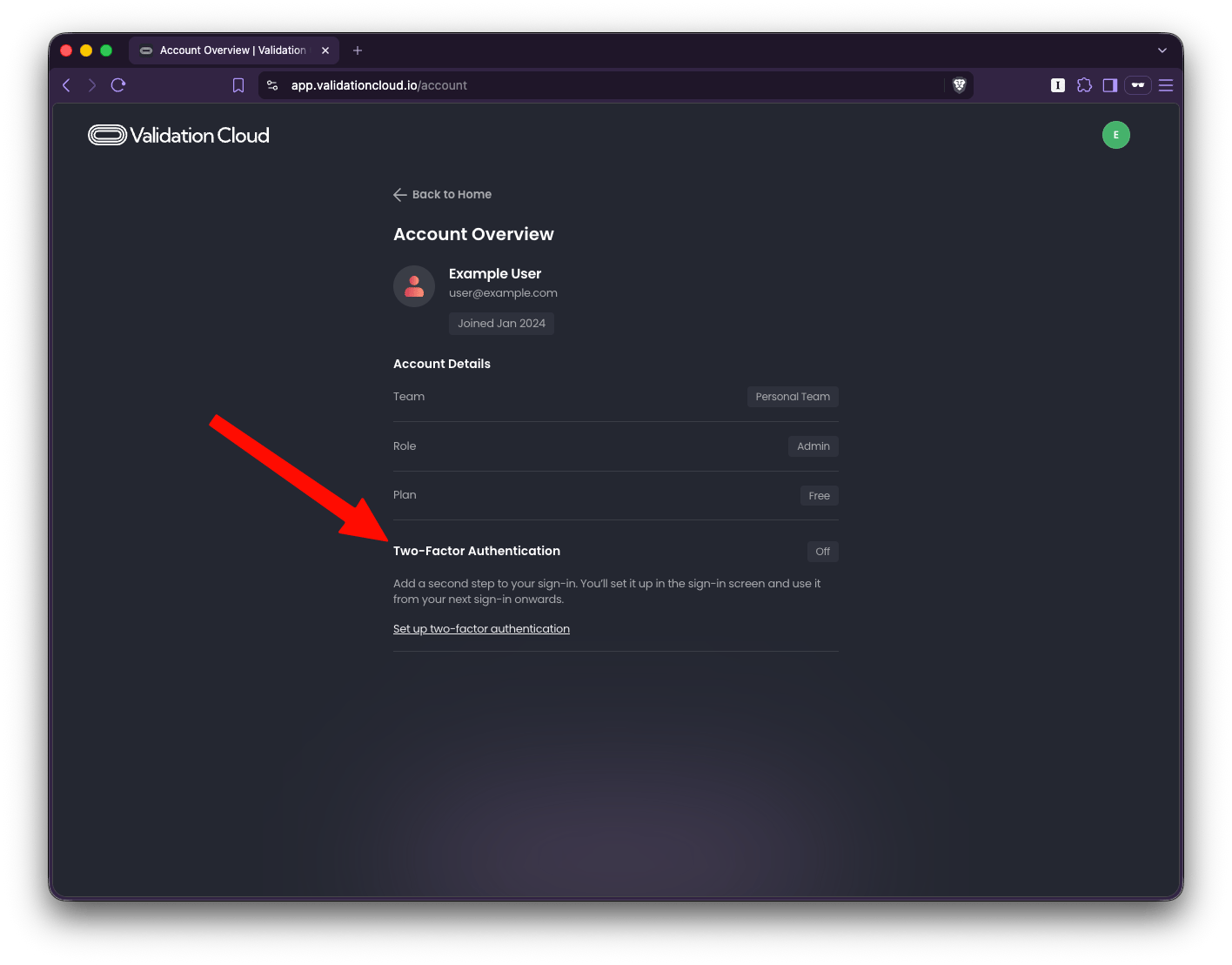
- Account page: app.validationcloud.io/account, section Two-Factor Authentication, with an On / Off badge. Example screenshot below:
- Plans: all users on all plans, including Free.
- Roles: no role restriction. Admins and Team Members can each enable it for themselves.
- The Account page is the only place to configure Two-Factor Authentication. It is not available in the Admin API.
How to use Two-Factor Authentication (2FA) with your account
Turning it on- Go to Account (app.validationcloud.io/account or click on your name in the bottom left of the screen and click Account) and find Two-Factor Authentication.
- Click Set up two-factor authentication.
-
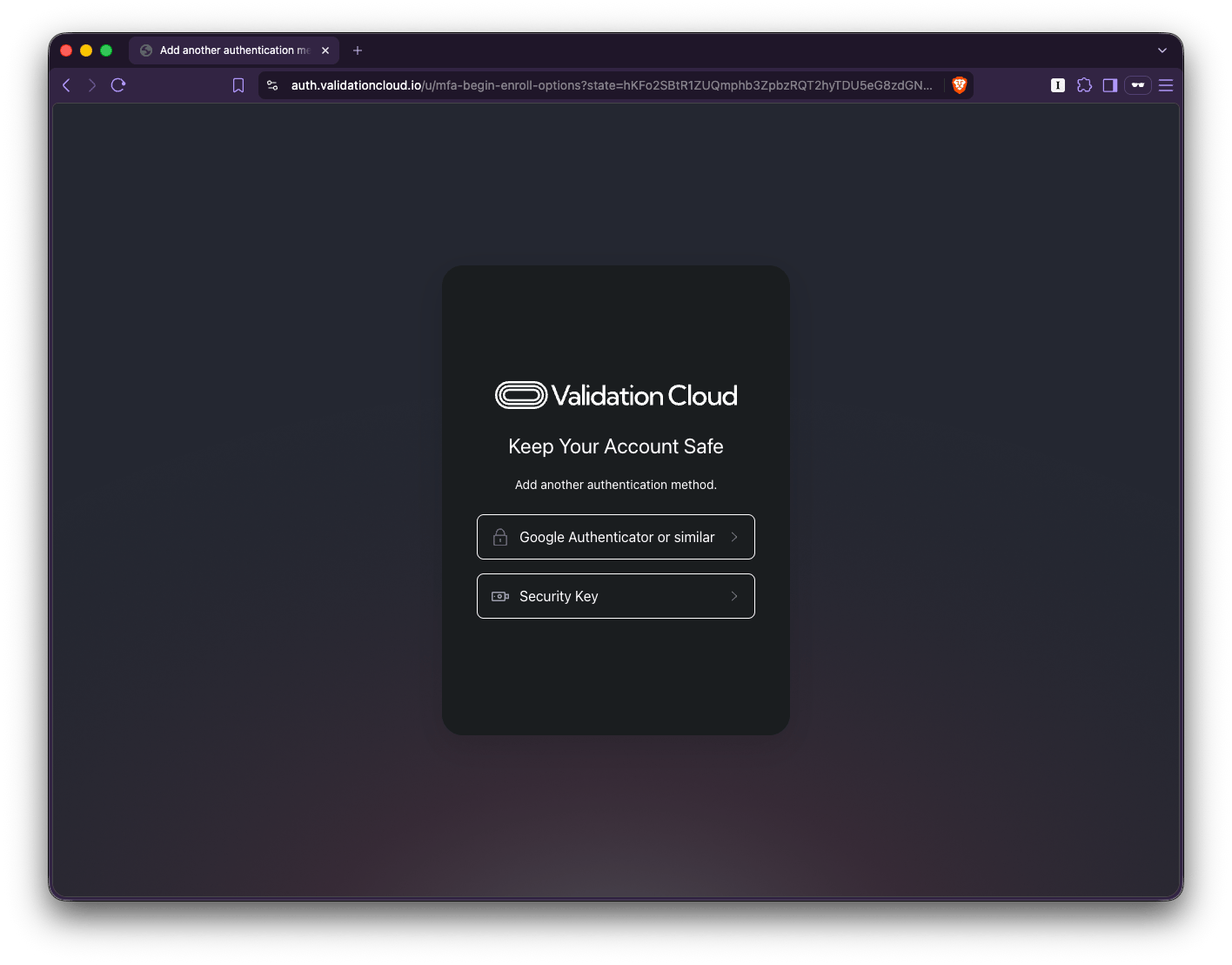
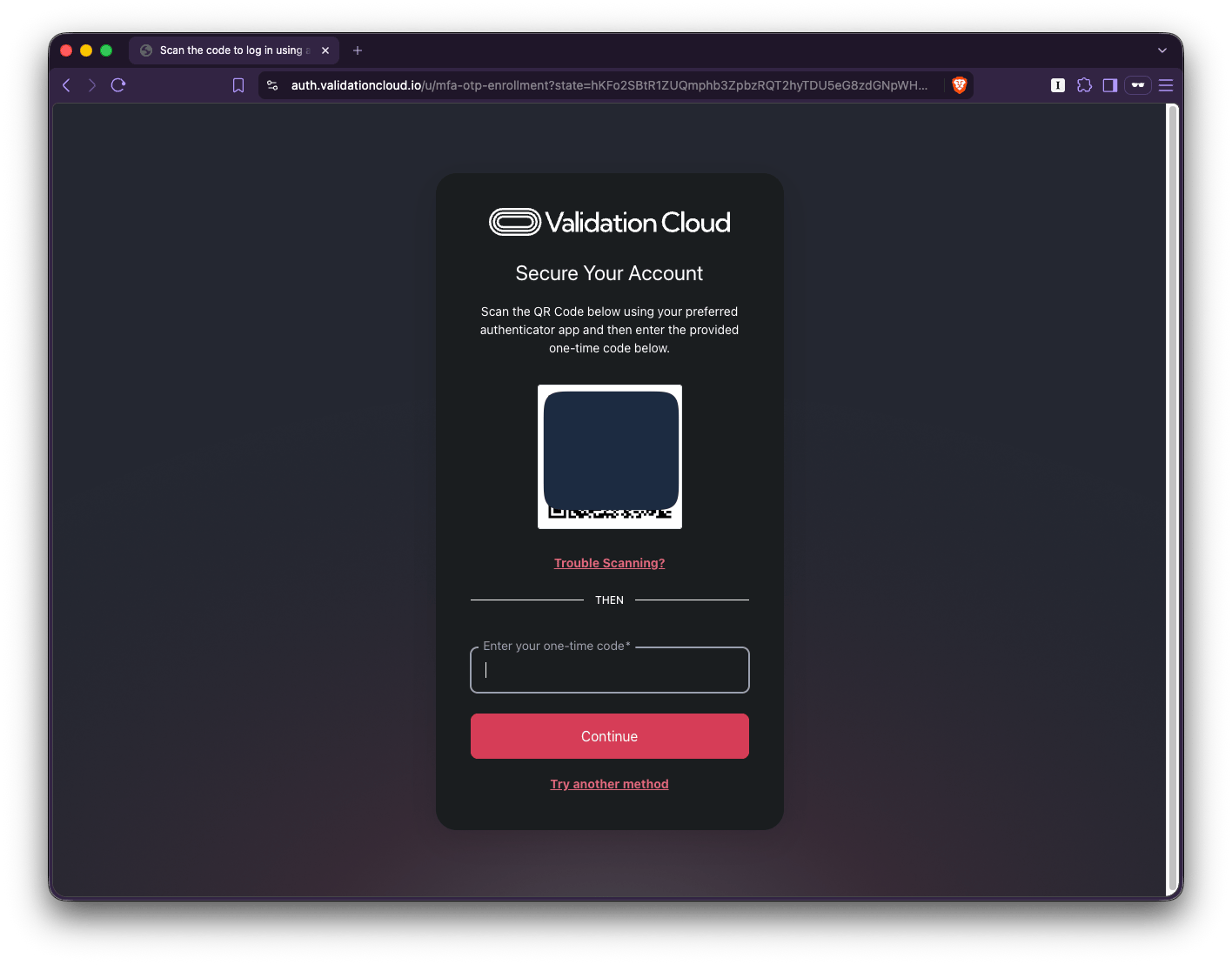
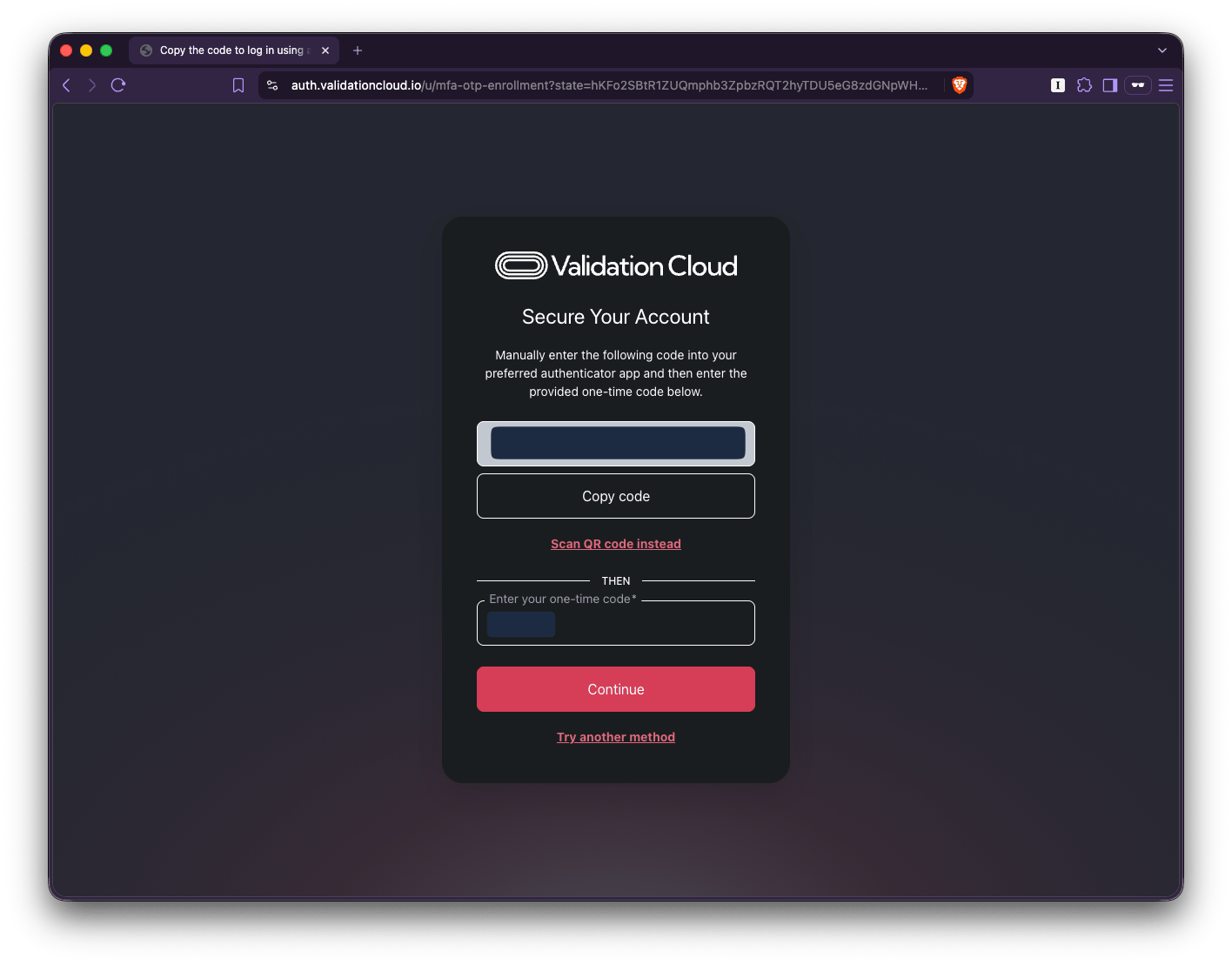
Choose a method (authenticator app, device biometrics or security key) and follow the prompts, e.g. scan the QR code with your authenticator app. Example screenshots below:
-
Example showing choosing an additional authentication (options vary depending on your device):
- Example showing QR code for authenticator (QR redacted):
-
Example showing choosing an additional authentication (options vary depending on your device):
-
IMPORTANT: Save the recovery code shown at the end, it is only shown once. Keep it somewhere safe, e.g. your password manager. Example screenshot below (recovery code redacted):
-
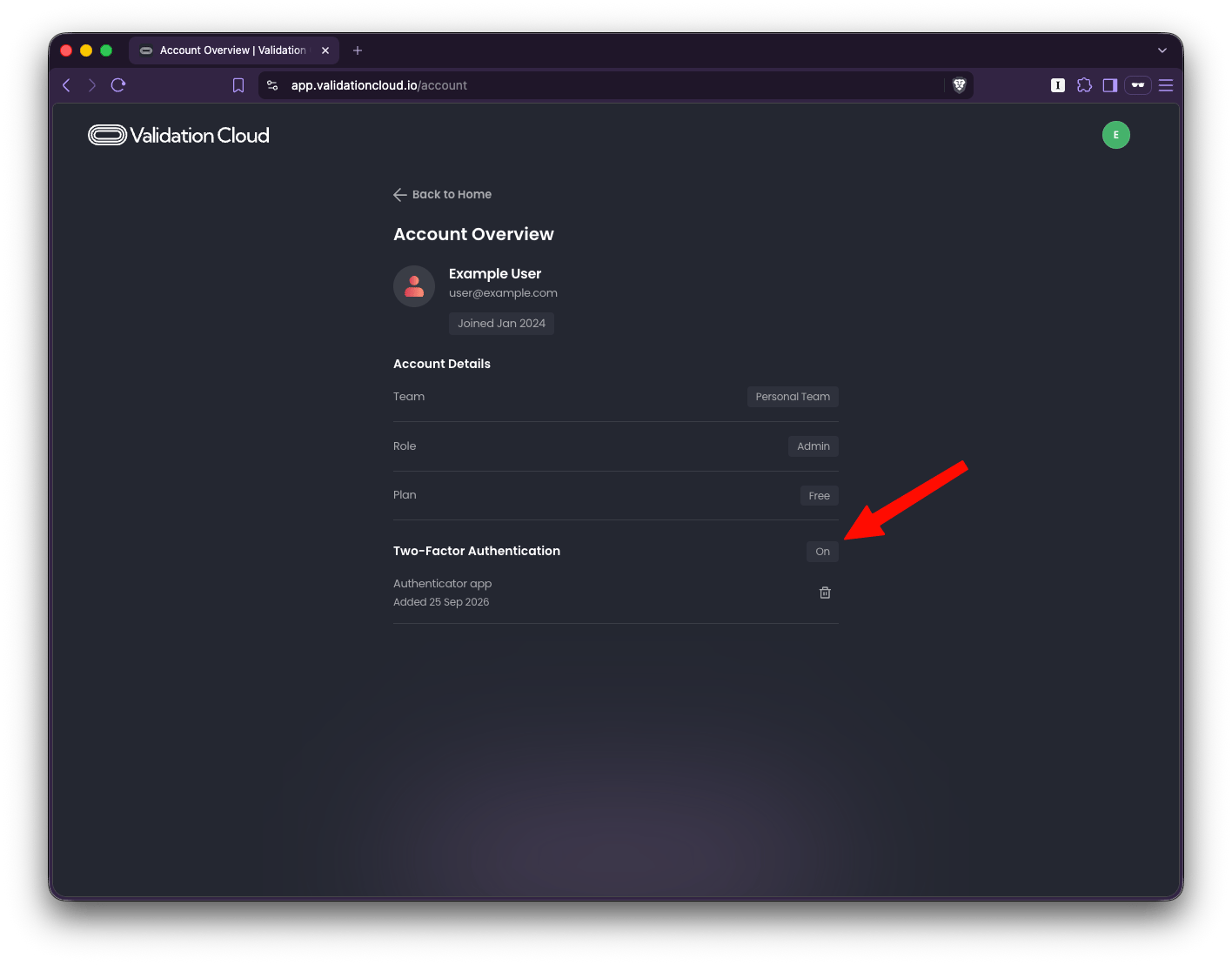
You’re returned to the Account page. The badge shows On and your method is listed with the date it was added. Example screenshot below:
- After your password you will be asked for your second factor.
- Enter your recovery code at the second step instead.
- If you’ve lost your device and the recovery code, contact us: https://www.validationcloud.io/contact. We’ll review your account and reset 2FA for you to set it up again at your next sign-in.
- One method per user at a time. To switch, remove the one you have (bin icon next to it) and set up again with the new method.
- Click the bin icon next to your method. It’s removed straight away and the recovery code is discarded with it.